
#1 ·
Look, tons of MacBook M1 owners are hitting this wall, and from what I can tell, nobody’s actually given a decent fix yet—not even Apple.
Here’s the deal: you fire up the App Store and all you get is a blank window staring back at you. If you manage to click some invisible button in the top left, you just get hit with a "connection failed" error.
It’s the same headache with Apple Music and iTunes, where signing in with your Apple ID becomes basically impossible.
And please, spare me the brainless advice like "check your Wi-Fi" or "call Apple support." Total waste of time.
The real culprit? Corrupted or outdated certificates.
Now, you *can* sign into both the App Store and Apple Music if you boot into Safe Mode. For anyone who doesn't know the drill: shut down the computer, wait for the keyboard backlight to die (takes about 10 seconds), then hold down that power button in the top right until you see the startup text and the Apple logo (plus that first chord from Bruce Springsteen's Streets of Philadelphia—F major, by the way). Hold it a bit longer until the message pops up, let go, wait for the hard drive and gear icons to show, select the hard drive with your arrows, hold Shift until you see the "Safe Mode" label, and hit Enter. In Safe Mode, you'll be able to log into both apps with your Apple ID and hopefully run software updates since you can't otherwise.
But honestly? That’s just a band-aid. Once you reboot out of Safe Mode, you’re right back where you started.
The actual fix is to wipe those local certificates.
Go to Launchpad -> Other -> Keychain Access.
Select "Certificates" at the top, then pick "System" on the left. This opens the system certificates (you'll see root ones too—leave those alone!).
Select them all, right-click, and delete.
Just a heads-up: this wipes your saved passwords and stuff, so make sure you've got your logins written down somewhere first.
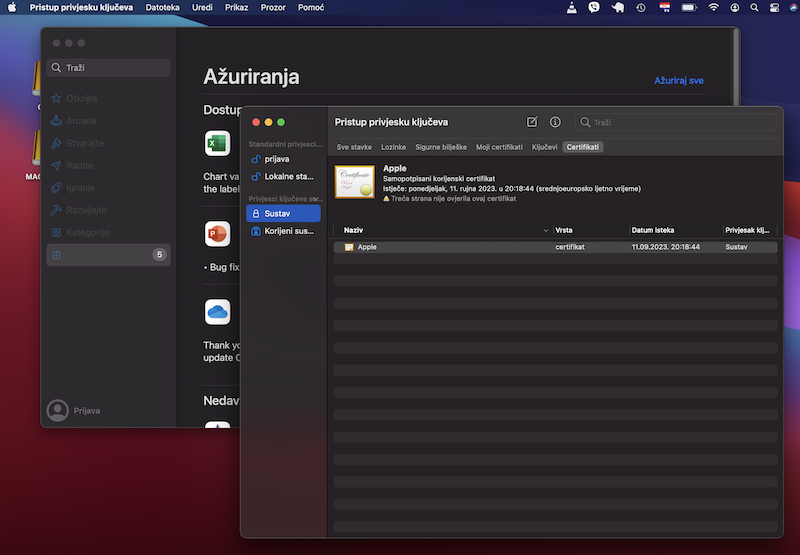
That's it. When you reopen the App Store and Apple Music, they'll ask for your Apple ID again, and once you sign in, everything should work perfectly.
Some people suggest resetting the keychain entirely, but I don't think that's necessary. Let me know if you guys have dealt with the App Store acting up like this.
As for why these certificate issues happen in the first place? That's a whole different story.
Here’s the deal: you fire up the App Store and all you get is a blank window staring back at you. If you manage to click some invisible button in the top left, you just get hit with a "connection failed" error.
It’s the same headache with Apple Music and iTunes, where signing in with your Apple ID becomes basically impossible.
And please, spare me the brainless advice like "check your Wi-Fi" or "call Apple support." Total waste of time.
The real culprit? Corrupted or outdated certificates.
Now, you *can* sign into both the App Store and Apple Music if you boot into Safe Mode. For anyone who doesn't know the drill: shut down the computer, wait for the keyboard backlight to die (takes about 10 seconds), then hold down that power button in the top right until you see the startup text and the Apple logo (plus that first chord from Bruce Springsteen's Streets of Philadelphia—F major, by the way). Hold it a bit longer until the message pops up, let go, wait for the hard drive and gear icons to show, select the hard drive with your arrows, hold Shift until you see the "Safe Mode" label, and hit Enter. In Safe Mode, you'll be able to log into both apps with your Apple ID and hopefully run software updates since you can't otherwise.
But honestly? That’s just a band-aid. Once you reboot out of Safe Mode, you’re right back where you started.
The actual fix is to wipe those local certificates.
Go to Launchpad -> Other -> Keychain Access.
Select "Certificates" at the top, then pick "System" on the left. This opens the system certificates (you'll see root ones too—leave those alone!).
Select them all, right-click, and delete.
Just a heads-up: this wipes your saved passwords and stuff, so make sure you've got your logins written down somewhere first.
That's it. When you reopen the App Store and Apple Music, they'll ask for your Apple ID again, and once you sign in, everything should work perfectly.
Some people suggest resetting the keychain entirely, but I don't think that's necessary. Let me know if you guys have dealt with the App Store acting up like this.
As for why these certificate issues happen in the first place? That's a whole different story.