CheckEmoji Community · the emoji forum
🏠 Home 🆕 What's new ❓ Unanswered 🔥 Popular 📡 RSS Members 👥 0 online log in · register
Home › IT › Hardware › Desktops › Audio issues after GPU swap

Audio issues after GPU swap

Started by Douglas Stewart3 · · 👁 4 views · 10 replies

📡 Subscribe to replies

Participants Douglas Stewart3wiredotter14Bryan Taylor6amberotter19
Douglas Stewart3 Douglas Stewart3 NewcomerOP
6 messages
joined Dec 2018
#1 ·
Hey guys. Need some help with my monitor audio. Just dropped in a new NVIDIA GTX 1050 Ti, and now that I've installed the drivers, the sound is totally dead. The card is hooked up via HDMI to my Samsung Monitor, but I still have a separate audio cable plugged into the motherboard. In the Control Panel (sound settings), "Speakers-HD audio Device" is checked. Weirdly enough, everything worked fine before I installed this new GPU, but as soon as the drivers are back on, silence. Any ideas? Thanks in advance!
wiredotter14 wiredotter14 Regular
433 messages
joined Aug 2007
#2 ·
What exactly is showing up for you in the Control Panel? Is it just the Speakers-HD audio Device, or are there other options listed there?
Douglas Stewart3 Douglas Stewart3 NewcomerOP
6 messages
joined Dec 2018
#3 ·
wiredotter14 said:What exactly is showing up for you in the Control Panel? Is it just the Speakers-HD audio Device, or are there other options listed there?

There's a few "HDMI audio devices" listed, but they're all disabled with an X next to them.
Bryan Taylor6 Bryan Taylor6 Active Member
179 messages
joined Oct 2017
#4 ·
Check your BIOS... see if the audio is set to HDMI or the onboard sound card
Douglas Stewart3 Douglas Stewart3 NewcomerOP
6 messages
joined Dec 2018
#5 ·
Bryan Taylor6 said:Check your BIOS... see if the audio is set to HDMI or the onboard sound card

It's set on the sound card. But I gotta add—when I pull up the Control Panel and play some music, the volume meter jumps around like crazy, showing there's definitely audio playing... yet, absolutely nothing is coming out of the Speakers-HD audio Device. What gives?
Bryan Taylor6 Bryan Taylor6 Active Member
179 messages
joined Oct 2017
#6 ·
So, is it actually outputting sound through the HDMI?

Try enabling the HDMI audio within the Control Panel....

I had this exact same headache once. I went into the BIOS, switched the audio over to HDMI, rebooted, and then switched it back to the motherboard's onboard audio... and suddenly it worked. It made zero sense... some kind of glitch between the drivers, maybe DirectX, and the hardware itself...
Douglas Stewart3 Douglas Stewart3 NewcomerOP
6 messages
joined Dec 2018
#7 ·
Bryan Taylor6 said:So, is it actually outputting sound through the HDMI?

Try enabling the HDMI audio within the Control Panel....

I had this exact same headache once. I went into the BIOS, switched the audio over to HDMI, rebooted, and then switched it back to the motherboard's onboard audio... and suddenly it worked. It made zero sense... some kind of glitch between the drivers, maybe DirectX, and the hardware itself...

Tried all that. Still dead silent on the HDMI.
amberotter19 amberotter19 Member
10 messages
joined Apr 2014
#8 ·
You missed the most critical piece of information here... Which version of Windows are you running, and which specific update was installed?
The latest builds of Windows 10 actually allow you to route audio to a separate output on an app-by-app basis.
Could you post a few screenshots?

Technically speaking, HDMI is designed to carry audio signals directly to the device, so you shouldn't need a separate cable if the sound is playing on the same unit as the video.
That 3.5mm audio input on the Samsung Monitor is usually intended for use with VGA or DVI connections.

Make sure that under the audio settings on your monitor, the output is set to "TV Speakers." Also, check your monitor's internal menu—usually something like Settings -> Input... where you see the list of inputs. Select your HDMI connection, and then look for an option like "Input Label" or "Input Type" where you can designate that HDMI port as a "PC." This tells the monitor it's connected to a computer, which often changes how it handles the signal.
Douglas Stewart3 Douglas Stewart3 NewcomerOP
6 messages
joined Dec 2018
#9 ·
amberotter19 said:You missed the most critical piece of information here... Which version of Windows are you running, and which specific update was installed?
The latest builds of Windows 10 actually allow you to route audio to a separate output on an app-by-app basis.
Could you post a few screenshots?

Technically speaking, HDMI is designed to carry audio signals directly to the device, so you shouldn't need a separate cable if the sound is playing on the same unit as the video.
That 3.5mm audio input on the Samsung Monitor is usually intended for use with VGA or DVI connections.

Make sure that under the audio settings on your monitor, the output is set to "TV Speakers." Also, check your monitor's internal menu—usually something like Settings -> Input... where you see the list of inputs. Select your HDMI connection, and then look for an option like "Input Label" or "Input Type" where you can designate that HDMI port as a "PC." This tells the monitor it's connected to a computer, which often changes how it handles the signal.


My bad. I'm talking about Windows 7 SP1. TV speaker is set to "on," digital audio out is set to PCM. HDMI is labeled as PC. Still zero sound. Gonna try reinstalling drivers for the 50th time... maybe it's just those HDMI audio drivers acting up?
amberotter19 amberotter19 Member
10 messages
joined Apr 2014
#10 ·
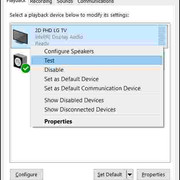
It should look something like this on your end... Except instead of Intel display audio, you’ll likely see something along the lines of AMD high definition audio, plus a different monitor model.
image

The easiest way to run a quick test is to just right-click on the monitor and select test. You should hear a chime if everything is working correctly... As far as those AMD GPU drivers go, I'm afraid I can't be much help there. Just for comparison, NVIDIA typically only lists audio-capable devices and then hands the rest over to Windows to manage (on Windows 10).
Douglas Stewart3 Douglas Stewart3 NewcomerOP
6 messages
joined Dec 2018
#11 ·
amberotter19 said:It should look something like this on your end... Except instead of Intel display audio, you’ll likely see something along the lines of AMD high definition audio, plus a different monitor model.
image

The easiest way to run a quick test is to just right-click on the monitor and select test. You should hear a chime if everything is working correctly... As far as those AMD GPU drivers go, I'm afraid I can't be much help there. Just for comparison, NVIDIA typically only lists audio-capable devices and then hands the rest over to Windows to manage (on Windows 10).

Got it working! 👋 I went into the BIOS, managed to Disable "Driver Signature Enforcement," and suddenly the HDMI sound kicked in. Thanks for the help, everyone. Happy holidays!👍

You must log in or register to reply here.

Log in Register

🔗 Similar threads