Regarding that motherboard, MSI is an absolute best buy at this price point when you look at the specs; there's really no debate there. Most of those tests you're seeing are "just" focused on thermals, so that's essentially the only metric that matters here. As for the expansion slots... well, it all comes down to how many drives and other components you plan on cramming into the case down the road.
I’ve learned the hard way that you can be pretty disappointed with Dell when they ship the exact same monitor series to an entire office. They all come from the same production line—say, one costs around $250—but once you line them up side-by-side, the calibration is all over the place. One looks yellowish while the next looks stark white. Even resetting everything to factory defaults doesn't fix it, which makes sense. It totally shattered any illusions I had about professional color accuracy or the supposed superiority of Dell displays. At the end of the day, you have to manually calibrate every single unit anyway. You could do the same thing with any third-party monitor, really. But yeah, it was a letdown.
If I were looking at Patriot, I'd probably pick just any SSD over them, like maybe a Corsair MP600 instead. Obviously, PCIe 4.0 isn't the same as 3.0, so I completely understand why you went with your choice. I'm just saying that if I were in your shoes, I wouldn't go that route, and I've already explained my reasoning 😉 in case Samsung ends up being too overpriced for your budget.
For the GPU, your best bet is to check directly with retailers and suppliers (like Best Buy or Micro Center). I only mentioned the 3070 because its performance tier is comparable to a 2080, and honestly, it's better. I've heard there might be some issues with the 3080, so it's possible that beyond just being sold out, manufacturers have slowed down production to iron things out. From what I read online, the specific vendor matters quite a bit; for instance, Asus apparently only has one reported issue, whereas Palit seems to have more. But then again, like with most things, you can usually just solve the problem by downclocking, blah blah blah...
It really comes down to what you actually need from the build. Personally, I’d lean toward an ASUS board like the Taichi series because of the robust power delivery, the triple M.2 slots, the Intel networking chip, and having more SATA ports available. It carries a premium price tag, though, so it really depends on your budget and priorities. To be honest, every single ASUS product I’ve owned has felt a bit lower quality than I expected—and I’m not alone in that; a few colleagues of mine have had similar experiences too.
HP monitors are great, but in my experience, they tend to be a bit overpriced. You can almost certainly find a display with the exact same specs for a better price; it’s just a matter of looking. Besides, where is the USB-C port? It’s frustrating when those things are missing.
I’m currently running a Patriot Hellfire SSD, and while it performs well, it runs incredibly hot and heats up my entire case. I’ve been thinking about swapping it out for a while now. In my second slot, I have a Samsung 970 EVO which is actually faster and keeps much cooler than that Patriot drive. Honestly, if I were you, I’d steer clear of those budget-tier vendors. We all know who the real industry leaders are when it comes to storage and reliability.
As for RAM... well, if you can find something with higher speeds, just go for it. The manufacturers definitely benefit from those higher clock speeds.
I don't even think the GPU needs much discussion. Waiting for something in the 3070 class or better is pretty much the only logical move here.
I don't have the bandwidth right now to sit down and vet every single replacement component I would suggest, so I'll leave it at that.
Kevin Newman6 said:Haha, well, at least it’s actually moving some air. All three fans are pulling, too—one for the PSU, one for water cooling, and then there's whatever's venting right next to the GPU. Down below those two fans, there’s this Cooler Master filter that usually sits on top of the case (it’s magnetic, though the glue is currently melting from the heat), and over on the side, there's another filter that typically goes under the PSU when you're building the rig. It’s all just classic cheap particle board, really. I don't know, I guess I was just bored, so I decided to clear everything off the floor... might actually help with the dust buildup, if nothing else.
I really respect the drive to take on a DIY project like this, but I’m honestly a little worried you might run into some serious overheating issues. Here is a solid article that breaks down how to properly design case cooling. For your specific build, I think you should really focus on:
The most cost-effective way to handle this is probably just plugging the printer directly into the USB port on your router, which then makes it accessible to every device on the network. The only catch is you'll need to make sure your router actually has a USB port and supports that kind of functionality.
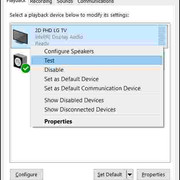
It should look something like this on your end... Except instead of Intel display audio, you’ll likely see something along the lines of AMD high definition audio, plus a different monitor model.
The easiest way to run a quick test is to just right-click on the monitor and select test. You should hear a chime if everything is working correctly... As far as those AMD GPU drivers go, I'm afraid I can't be much help there. Just for comparison, NVIDIA typically only lists audio-capable devices and then hands the rest over to Windows to manage (on Windows 10).
You missed the most critical piece of information here... Which version of Windows are you running, and which specific update was installed? The latest builds of Windows 10 actually allow you to route audio to a separate output on an app-by-app basis. Could you post a few screenshots?
Technically speaking, HDMI is designed to carry audio signals directly to the device, so you shouldn't need a separate cable if the sound is playing on the same unit as the video. That 3.5mm audio input on the Samsung Monitor is usually intended for use with VGA or DVI connections.
Make sure that under the audio settings on your monitor, the output is set to "TV Speakers." Also, check your monitor's internal menu—usually something like Settings -> Input... where you see the list of inputs. Select your HDMI connection, and then look for an option like "Input Label" or "Input Type" where you can designate that HDMI port as a "PC." This tells the monitor it's connected to a computer, which often changes how it handles the signal.
Ronald Myers81 said:Honestly, just grab anything else besides those awful IBM drives! I had two of them die on me just a few months after the warranty expired.
A warranty doesn't mean much when you've lost all your data anyway... On a side note, if you happen to know, what was the typical operating temperature for those units? Usually, heat is the main culprit behind components failing prematurely... especially with IBM drives, they can be pretty sensitive to thermal issues.
I hear where you're coming from, but let's be realistic—you're probably only going to use this twice a year, if that. Investing in a cheap off-brand unit just for something that rare doesn't really make sense. Besides, if you're struggling with reaching those rear ports, you can always just run a extension cable from the back panel to the front to make things easier. Honestly, I think the IB-868-B is definitely the way to go... especially if you have, or are planning to get, a phone that requires a 2.4A at 5V charger...
I’d much rather go with one of these options... whichever one suits you best. You either get it right in your hands immediately, avoid some random off-brand import, or at least know you have a full year of warranty coverage. Plus, $27 is basically nothing—it's about twenty bucks. Honestly, don't overthink it; just buy it locally here.
Maybe try resizing those icons... they look a bit oversized to me. Try right-clicking on the desktop and using Ctrl + scroll. I'm not entirely sure if that shortcut is supported on Windows 7, but it definitely works on Windows 8 and 10. Hopefully, that does the trick for you.
Since you didn't specify which OS you're running, I’m going to assume you're on Windows 8 or Windows 10, so give this a shot... You can find that specific window by navigating to Power Options -> change plan settings -> change advanced....
Which Windows versions are you running up there? If it’s been about a week, you might actually be in good shape, since the system tends to settle in pretty well once it gets used to the new hardware..
These scaling issues are acting really strange... It might not even be a software problem; there's a chance the monitor itself is handling the scaling on its own. You should try adjusting the settings directly on the hardware. That said, looking at the big picture, the best move is probably just to wipe everything and perform a clean reinstall. These kinds of glitches are always so unpredictable.
The whole setup has basically only been running for two weeks.
Games actually run fine and all, but there's this annoying catch where I can't even set my resolution to 1920x1080. It’s like I have to dive into the NVIDIA Control Panel and manually tweak the scaling options down to 0 just to get it to work.
The weirdest part? If I uninstall everything, my system just defaults to a "Standard VGA Adapter," but then as soon as I try to reinstall the drivers, the NVIDIA Control Panel just refuses to show up.
What do you mean by "scaling options"? Did you maybe connect the monitor via HDMI and have display issues where you couldn't see the taskbar, so you tried scaling it? Could you explain that a bit more? Also, what kind of monitor are you using?
What kind of PSU are you running, and how old is it? Regarding the picture quality, there isn't actually any difference between HDMI and digital DVI (DVI-D/DVI-I)... the main thing is that HDMI carries audio while DVI doesn't. There are also a few minor headaches involving Blu-ray copy protection, though I doubt you'll run into those. Just some food for thought for the future: you can use DVI-to-HDMI adapters without losing any quality at all since the signal is digital either way.
Listen, buddy... those two motherboards actually use different sockets. Do you happen to have one of these processors on hand? https://www.dell.com/Motherboards/AM1MA/HelpDesk_CPU/
If this is a brand-new build, I’d suggest sitting down with the motherboard manual and following the assembly steps strictly in order. It’s easy to overlook something small, like forgetting to plug in the 12V CPU power cable or something similar. Since you haven't provided much detail beyond a few basic points, there isn't much anyone can do to help you troubleshoot just yet. Is this your very first time putting a computer together, or are you working with some older components you already had on hand?
Good grief, I can't believe that was the response to such a question... It isn't just about changing your resolution; everything else plays a massive role too. You have to consider the specific game you're running, the level of detail required, and obviously, the power of your graphics card. Honestly, this whole debate feels like a complete waste of time... at this rate, you'll be lucky if you even hit 37.2 fps.
placidcanyon2 said:A dedicated GPU isn't strictly mandatory. Almost any PC will technically power on without one, though you might run into some delays during the POST process. Some systems seem to boot up just fine, too.
Some motherboards come with integrated graphics built right in. 😉
I mean, honestly... no amount of GPU power is going to save this setup. The processor is basically ancient history at this point and won't be able to handle any decent graphics card regardless. There's just no way to get anything meaningful out of this system unless you overhaul the CPU along with everything else. Besides that... I can't think of a single AGP card worth the investment anymore.