Here, please take a look at this brief video I recorded I went into the BIOS and configured the system to boot from a USB stick (Linux), but for the life of me, it just won't work; it simply refuses The exact same thing happens when I insert a Windows DVD or Hiren's BootCD It completely ignores the boot source I specifically assigned to it within the BIOS settings I am quite perplexed by this, as I have always understood from various online forums that even if the hard drive is completely fried, you should always be able to boot from an external source, whether it's a USB or a DVD
I’ve even gone as far as pulling the battery out, but absolutely nothing is working. I am quite perplexed as to why I simply cannot boot from my USB drive (Linux) or a DVD (Hiren's BootCD), even though I have specifically gone into the BIOS and set them as the primary boot device.
There is also another matter that has left me feeling rather stumped; I was attempting to access the Command Prompt. After restarting, I held down F8 and selected Safe Mode with Command Prompt, yet the system just brings me right back to where I started.
In both instances, I am repeatedly redirected to this exact screen: Windows failed to start. A recent hardware or software change might be the cause. 1 Launch Startup Repair (recommended) 2 Start windows Normally
There is one particular detail that continues to baffle me I have my Linux installation ready on a USB drive, and I've gone through the motions of inserting it into my computer and selecting that specific USB drive as the primary boot device within the BIOS. However, instead of booting into Linux, the system stubbornly loops back to that same, dreaded black screen every single time. Windows failed to start. A recent hardware or software change might be the cause. 1 Launch Startup Repair (recommended) 2 Start windows Normally
The exact same frustrating cycle occurs even when I attempt to use a DVDHirens BootCD. It just won't budge!
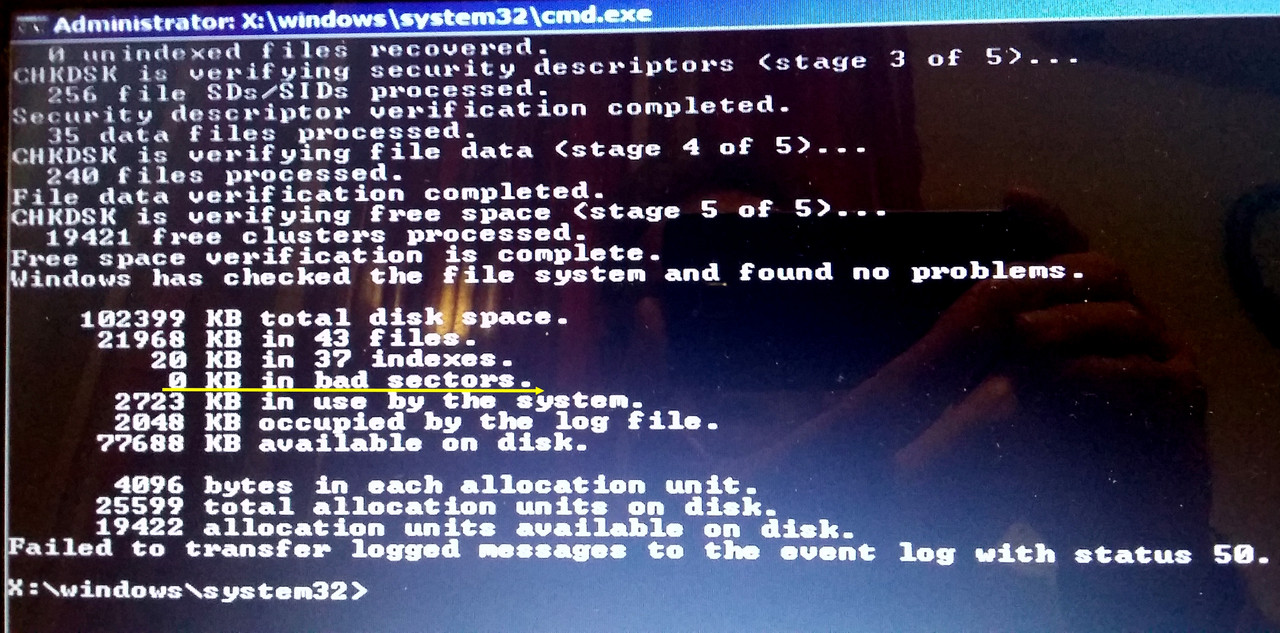
I find it quite difficult to believe that my hard drive has actually given up the ghost just yet! Somehow, through a bit of sheer persistence, I managed to break into the Command Prompt and execute the CHKDSK C: /F /R command, which then proceeded to display the diagnostic data for me. It specifically states "0 kb in bad sectors".
Yesterday, I powered on my laptop, "Dell Inspiron", and it seems Windows 7 refuses to load properly. Instead, I am staring at a black screen displaying this message: Windows failed to start. A recent hardware or software change might be the cause. 1 Launch Startup Repair (recommended) 2 Start windows Normally
So, I went ahead and selected Launch Startup Repair, but after waiting for several minutes, I was met with this rather discouraging message:
“Windows cannot repair this computer automatically”
At that point, I thought to myself, "Well, there's really nothing left to do but reinstall Windows entirely." I proceeded to insert DVD into the drive, entered the BIOS, and under the Boot menu, I chose CD/DVD before hitting f10 to save settings. However, after a short while, the exact same error screen pops right back up: Windows failed to start ......... It keeps looping me right back to that initial screen over and over again. I am truly at my wit's end here—does anyone happen to know how I might resolve this issue?
I seem to have neglected to mention that I am still working with Microsoft Word 2003, and unfortunately, nothing else seems to be helping me here. It simply displays the character count for each individual line rather than providing a grand total. For instance, if I move my cursor to the first line right after the sixth character, it shows Lin 1 Col 6. Then, when I move down to the second line—say, after the tenth character—it displays Lin 2 Col 10. Is there any way at all that I could highlight the entire body of text and use some sort of tool within Microsoft Word to extract the total count?
For instance, if I have some text drafted in Microsoft Word and I’m curious about the exact character count—including all those pesky spaces—I'd love to know how to find that out quickly.
I’ve been using my HP Envy 5000 lately, and I’ve run completely out of color ink. It’s quite a nuisance, really! Now, every single time I attempt to print something, I find myself having to navigate through five or six different menu steps just to force the machine to print in grayscale. Is there any way to simply set it to print in grayscale by default—at least until I can get some more color ink? I would dearly love to avoid this repetitive manual process every time I need a hard copy.
I decided to run a quick check on my Java installation while using the Chrome browser at http://www.java.com/en/download/installed8.jsp, but I was met with rather discouraging news: this plugin is not supported. However, when I performed the exact same verification process over in Firefox, the result was quite the opposite—it actually told me, "Congratulations! You have the recommended Java installed (version 8 update 45)."
I followed your instructions to the letter, truly I did, but when I navigate over to Google Chrome://plugins, I can see the entry for Flash, yet there is absolutely no sign of Java anywhere on the list. Please, take a look at this image
Oh, goodness me, if only I possessed the technical know-how to pull all of that off myself! It's quite daunting, really. Would you be so kind as to elaborate on the process a bit more, if it isn't too much trouble?
I am honestly at my wits' end here. Every time I attempt to visit certain video streaming sites, I am met with these persistent, nagging prompts insisting that I install Java—even though I have already verified that the absolute latest version is installed on my system. To make matters worse, the exact same thing keeps happening with Adobe Flash. I have gone through the tedious process of reinstalling both software packages five separate times now, yet the cycle remains unbroken. I recall hearing a suggestion once that I might need to navigate to the address bar and type in chrome://flags as well as chrome://plugins to adjust some internal settings. Does anyone out there happen to know the proper way to resolve this frustrating issue?
Well, I went ahead and reinstalled Windows 8.1, and I am relieved to report that the move to my other partition (D🙂) was finally a success! However, I have run headfirst into a new complication. I logged into my account at https://onedrive.live.com/ and everything looks perfect there—all my folders and files are visible as they should be. But here is the snag: when I open File Explorer on my computer and click on the OneDrive folder, a prompt appears at the bottom stating that I need to perform a Windows update. I followed those instructions immediately and completed the updates, yet to no avail. The synchronization between my local machine and the web version simply refuses to engage.
I find myself inclined to agree with you, quite frankly, because it strikes me as rather peculiar that an installation would wrap up in a mere matter of seconds without posing a single question or requesting any input whatsoever.
I’ve been sitting here for over half an hour now, just staring at the screen, and absolutely nothing is happening—it just keeps saying Not Responding! I truly don't believe I should have to wait any longer than this; honestly, back when I was running Windows 7, this exact same process would have finished in a matter of seconds on this very same computer. It feels quite strange to me that after the installation, there isn't even a little icon appearing in the system tray, nor can I find any folders or files within Program Files. It's quite baffling, because under Windows 7, there would be a dedicated Microsoft Google Drive folder right there in Program Files.
George Sanders37 said:Are you running the installation using an account that has administrator privileges? Have you tried right-clicking the setup file and selecting Run as administrator?
Well, I just attempted the installation again using "Run as administrator," and yet, the result remains stubbornly the same. Whenever I attempt to select a different storage path—specifically Google Drive>>—and click apply, the system simply becomes Not Responding.
I find it truly difficult to believe that I cannot resolve this issue through any means; it would be quite devastating if I were actually forced to revert back to Windows 7 just because of this single hurdle.
I am at my absolute wits' end with this situation. I have attempted to reinstall Google Drive—honestly, probably for the hundredth time now—but during the installation process, it doesn't ask me a single thing! It just breezes through the setup in a matter of seconds, and then, suddenly, this blue Google Drive folder just appears on my desktop, tucked inside a folder named after my computer user profile. I tried following your advice again, truly I did, but once more, the application simply sits there, Not Responding. It is frankly baffling to me that I am running into these hurdles on Windows 8; when I was using Windows 7, it would at least have the decency to ask me where I wanted to install the software.
It simply refuses to cooperate. I have followed every single step of the process, including creating an entirely new folder on my D: drive, yet when I click Move followed by Apply, the system seems to struggle for a few seconds before it inevitably displays Not Responding. I have attempted this entire procedure three separate times now, but the result remains stubbornly the same.