Home › IT › IT Support ›
Network security key
Network security key
Started by Paul Rogers94 · · 👁 6 views · 38 replies
Participants


#2 ·
Paul Rogers94 said:...the modem key for connecting to the Wi-Fi. How do I find it?
It’s printed right on the back of the modem, on that tiny little sticker... 🙄 and if it isn't there, then we certainly aren't going to be able to tell you where else it could possibly be.🤣
#3 ·
darkcyclist92 said:It’s on the back of the modem—on that little one, right in the plaster... 🙄 If it isn't there, then we certainly don't have a clue where else it could be... 🤣
That sticker fell off... I tucked it away somewhere, but now I have zero clue where it ended up.
I just picked up a new laptop and I'm stuck—how am I supposed to get this thing online without a password?
Is there actually any way to get to her?
Maybe via my phone—if it stays connected...
#4 ·
Paul Rogers94 said:That sticker fell off me, and I tucked it away somewhere but now I can't find it for the life of me
So, I just picked up a new laptop and I'm stuck—how do I get it online without knowing the password?
Is there any way to track it down?
Maybe through my phone since it's already connected?
Look, you’ve basically got two different things to worry about on your router:
1.a) The default login/password used to actually log into the router's settings via an Ethernet cable (like if you wanted to change stuff from your desktop)
1.b) And/or just getting out to the internet (which usually doesn't require a login once you're connected; it just works)
2. The login/password specifically for joining the Wi-Fi network to get internet access; usually, you aren't even allowed to mess with the router settings once you're just on the Wi-Fi side.
That sticker on the bottom typically only gives you the info for (1.a). Some brands don't even have stickers, but you can always just Google the user manual to find the factory default admin login/pass.
From what I can tell, you're looking for (2). If you want that laptop browsing the web over Wi-Fi, and you've already got a phone connected to the router's Wi-Fi, just jump into your phone's Wi-Fi settings, toggle "show password," and then just type those same details into your laptop. Easy peasy.
If you're trying to plug the laptop directly into the router with an Ethernet cable, you shouldn't even need a password. Just make sure your laptop is set to grab an IP automatically (DHCP), and it should pull everything it needs right when it boots up.
Either way, you're gonna eventually need to figure out both the admin login for the hardware and the Wi-Fi password to actually surf the web.
#5 ·
Jack Cook7 said:It looks like you’re the one who needs help here (2). If you're trying to get your laptop online via Wi-Fi—assuming you have a phone that can connect to the router's Wi-Fi interface—all you really need to do is jump into your phone's Wi-Fi settings, toggle the option to show the password, and then just type those credentials into your laptop... simple enough.
If you’re planning to hardwire your laptop to the router via Ethernet, you shouldn't actually need a login or password—not under normal circumstances. Just make sure the DHCP client is enabled on your laptop, and it should automatically pull the necessary settings from the router during bootup... simple enough.
You’ll definitely need to sort out both the Ethernet credentials for admin access and the Wi-Fi login/password just to get online...
My phone is only giving me the option to share the Wi-Fi via QR code...
Does that mean if I plug my laptop directly into the router via Ethernet, it’ll grab all the essential settings and then just work fine over Wi-Fi later...?
Where am I supposed to find that DHCP client?
I couldn't find a port for the cable on my laptop—it’s incredibly thin, so maybe it uses some different kind of connection...
Thanks.
#6 ·
Jack Cook7 said:It looks like you’re the one who actually needs help here. If you're trying to get your laptop online via Wi-Fi by using your phone as a bridge through the router—assuming your phone is already connected to that network—all you have to do is dive into your phone's Wi-Fi settings, toggle the option to view the password, and then just punch those credentials into your laptop... simple enough.
If you’re hardwiring a laptop to a router via Ethernet, you shouldn't actually need a login or password—it's pretty straightforward. As long as you have the DHCP client enabled on your laptop, it should just pull the necessary settings directly from the router during bootup... simple enough.
You’ll definitely need to sort out both the Ethernet credentials for admin access and the Wi-Fi login/password just to get online...
Does that mean if I plug my laptop directly into the router via Ethernet, it’ll grab all the essential settings and then just work fine over Wi-Fi later?...
Thanks.
Now I'm just even more frustrated... 🙂
My phone is just spitting out some QR code for the Wi-Fi, and I can't even plug the ethernet cable into my laptop because the connector is too small—is there some other kind of port I should be looking for?
#7 ·
Paul Rogers94 said:so does that mean
1. if I plug my laptop straight into the router with an Ethernet cable, it'll grab all the important settings automatically?
2. and then later on, I can just use the Wi-Fi normally?
1. Yeah. (Pretty much.)
2. Nope. You gotta set up the Wi-Fi separately since there are extra parameters involved. We'll tackle that once you get the main issue (1) sorted out.
where am I supposed to find this DHCP client?
thanks man
The DHCP client service is built into every single Windows install. It’s basically running by default even if you aren't touching it. Just plug the laptop into the router via Ethernet, give the machine a quick reboot to let everything settle, and you should be good to go—you'll be able to hop on a browser and hit a site like Reddit or whatever.
Then we'll move on to the next step.
#8 ·
Paul Rogers94 said:So, if I plug my laptop straight into the router using a cable, will it just grab all the important settings automatically and then work fine over Wi-Fi later?
thanks man
now I'm even more frustrated 🙂
My phone just shows me some QR code for the Wi-Fi, and the ethernet cable won't fit into my laptop because it's too thin—does it need some different kind of port?
Alright, let's tackle the cable issue first. That's the easier win.
Take a look at both ends of the cable. How many copper pins/contacts are on those plugs—is it 2, 4, 6, or 8?
#9 ·
Jack Cook7 said:Alright, let's tackle the cable first—that's the easy part.
Take a look at both male ends of the cable. How many copper pins are we looking at per connector—2, 4, 6, or 8?
8
#10 ·
Paul Rogers94 said:8
Alright, so you're looking at an Ethernet cable with an RJ45 connector. Here’s what the end of a Cat5e cable looks like:
https://www.cmple.com/content/images...ID0007843.jpeg
Just plug one end into the Ethernet port on your laptop and the other into a port on your router—look for something labeled LAN1. Heads up though, some ports on those routers are usually set aside for phone lines, typically LAN3 or LAN4, so steer clear of those.
Give it about 10 seconds to settle, then fire up your browser and try hitting a site like www.cnn.com
#11 ·
Jack Cook7 said:Wait about 10 seconds, then try connecting via a web browser to a site like www.reddit.com
I know how to plug in a cable, but this laptop doesn't even have a port for it
Not sure if this matters—but the laptop was bought abroad, it's ultra-thin, has power and USB ports plus a few others, some holes on the back that look purely for ventilation, and it has a standard US keyboard layout
#12 ·
Jack Cook7 said:From what I can tell, you're looking for (2). If you want your laptop to get online via Wifia—assuming you have a phone that can access the internet through the router's wifi interface—all you need to do is jump into your phone's wifi settings, toggle the option to show the password, and then just type those credentials into the laptop.
I've got some friends coming over tomorrow who are connected to my PC, so I'll check if they can pull up that option on their phones.
Thanks a ton—everything you're suggesting actually makes sense.
#13 ·
Paul Rogers94 said:I know how to plug a cable into a laptop, but there isn't an actual port for it
I'm not sure if it matters, but the laptop was bought overseas, so it's got a US keyboard layout
Oof.🤦
Some laptops just don't come with an Ethernet RJ45 port. What exact model are you rocking? Grab the Part Number (P/N)—it's usually slapped on the bottom somewhere.
#14 ·
Paul Rogers94 said:I've got some buddies coming over tomorrow who connect to my PC, so I'll check if they can get this option working on their phones too.
Thanks a ton, man. Everything you're saying makes total sense, I’m just being a bit slow on the uptake here.
Look, you aren't stupid. You just haven't mastered this specific tech yet. No biggie.
By the way, if you have an "English keyboard" without those extra American characters, you can actually grab some letter decals and just stick them on yourself. You can get black or white letters depending on what color background you're working with.
https://www.homedepot.com/b/hardware-adhesive-lettering/N-5yc1vZ
Oh, and don't forget to hit the letters with some clear nail polish once they're stuck on—it'll make them last way longer before they start peeling.
#15 ·
Jack Cook7 said:Ugh.🤦
Some laptops don't even come with an RJ45 ethernet port. Which specific model are you rocking? Check the bottom—there should be a Part Number (P/N) listed there somewhere.
Here's what I see on the bottom
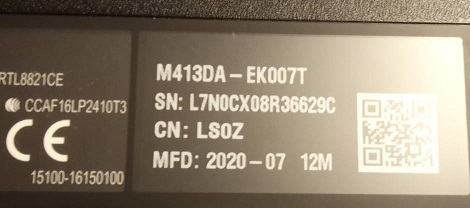
#16 ·
Paul Rogers94 said:this part is on my bottom side
Alright, looks like you've got an M413DA, which is a Dell.
https://www.dell.com/laptops/for-stu...m413/techspec/
And get this—there’s zero ethernet port here. Just Wi-Fi 5 and Wi-Fi 6. (!!!)
Wi-Fi 5(802.11ac) (Dual band) 1*1 + Bluetooth® 4.1
Wi-Fi 6(802.11ax) (Dual band) 2*2 + Bluetooth 5
Wi-Fi 5(802.11ac) (Dual band) 2*2 + Bluetooth® 4.2
So basically, you can't just plug a cable from the laptop straight into the router. You're stuck using wireless.
That means you'll need to know all those connection settings, which brings us back to checking your phone.
How exactly are you connecting via Wifia?
#17 ·
Jack Cook7 said:Alright, we're talking about the M413DA—a Dell.
https://www.dell.com/laptops/for-stu...m413/techspec/
How exactly are you connecting via Wifia?
Through the modem—that was back before I lost the key.
Anyone who ever hopped on my modem when I actually knew the password is automatically connected whenever they're within range of the router.
This laptop already connected to various offices and coffee shops back in New York City, so it’s likely set to connect via Wifia—I just need the password.
Hopefully, I can pull this off tomorrow when someone stops by; if they use their phone or Wifia, I should be able to grab the password like you explained above.
A QR code pops up on my end that someone can just scan with their phone if they want to join my network.
#18 ·
Paul Rogers94 said:back when I was using a dial-up modem—way before I lost the password
Anyone who ever hopped on my modem back when I actually knew the password is probably still auto-connecting whenever they get close enough to pick up my router signal.
This laptop has been sniffing out signals from random offices and coffee shops all over New York City, so it’s definitely set to hunt for Wi-Fi—I just need that damn password.
Hopefully, I can figure it out tomorrow when someone stops by. If I can use their phone or their Wifia to snag the password like you described above, we'll be golden.
A QR code pops up on my end that anyone can just scan with their phone if they want to jump on my network.
Man, it sounds like anyone who walks by your place can just hijack your internet whenever they feel like it, and honestly, that's a massive security risk.
Fix that ASAP tomorrow. If you can't, just shut the whole thing down until you get it sorted.
#19 ·
Jack Cook7 said:Look, man—you basically have an open Wi-Fi hotspot where anyone who feels like it can hop on. That is definitely not a good look.
Fix it tomorrow. If you can't, just shut the whole thing down until it's sorted.
🤣 It’s not quite what it looks like—I only have a handful of friends with their phones, laptops, and other gadgets, and they only connect when they're actually over at my place. It's the same deal when I'm at theirs. We've been doing it this way for over ten years... though, thanks to your helpful advice, I'll probably get the laptop on the network tomorrow.
I'll let you know how it goes.
#20 ·
Since people have been jumping you for about ten years now, I’d say watch your back. This crowd can get pretty brutal.
🔗 Similar threads
- The "Invisible Hand" of National Security: Are we hitting a wall in tech innovation? in Politics · Jul 29, 2026
- The shifting sands of "temporary" security in Politics · Jul 28, 2026
- When the seasons stop behaving, what happens to our sense of security? in The World Around Us · Jul 28, 2026
- The "Access" Game: Is diplomacy just high-stakes networking now? in Politics · Jul 27, 2026
- Is the "walled garden" approach to security finally dying, or just rebranding? in Software · Jul 27, 2026