#1 ·
I've got a single machine running a dual-boot setup with Windows 7 and 8. I didn't set this up myself, and honestly, I’m far from being some kind of IT expert... The Windows 7 side is 32-bit, while the Windows 8 side is 64-bit.
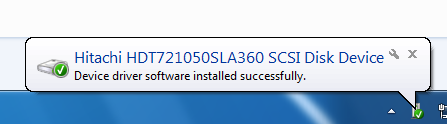
I was running into an issue on the Windows 7 side where I couldn't get online because I was missing a motherboard driver—specifically for the network card. This morning, I decided to run the offline version of DriverPack Solution, which actually fixed the connection issue. But now, I've hit a new snag: one of my hard drives has completely vanished from view.
To give you the layout, I have three separate drives: C:, where Windows 7 lives; D:, where Windows 8 is installed; and F:, which I use for all my various files and data.
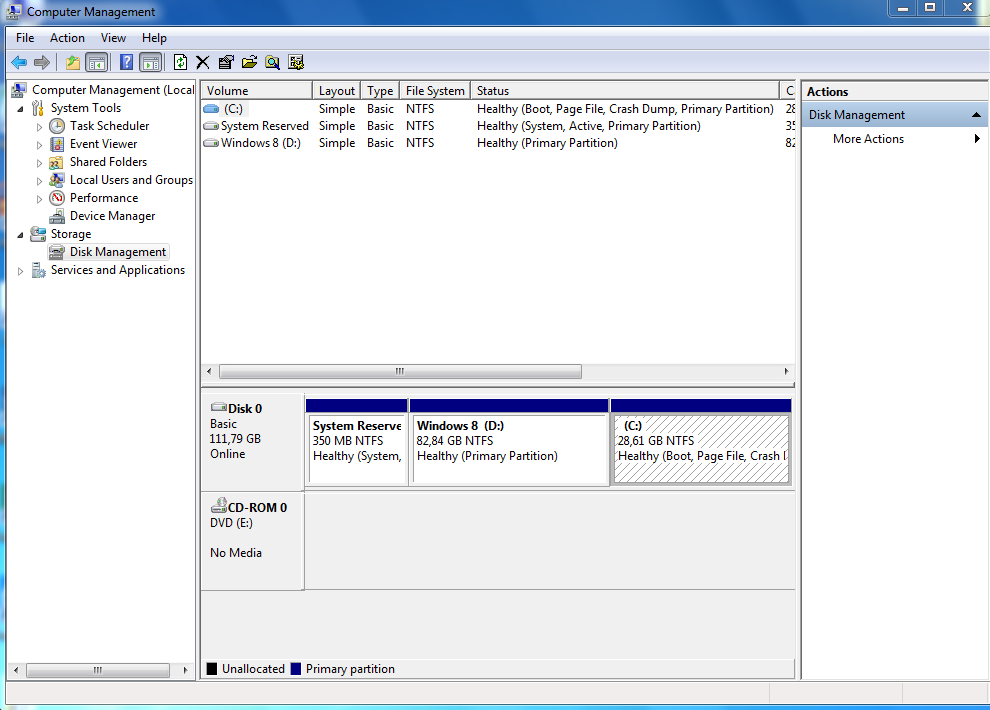
The weird thing is, drive F: shows up perfectly fine when I'm logged into Windows 8, but it’s nowhere to be found when I boot into Windows 7. Does anyone know a way to make it visible in Windows 7 without having to format the whole thing? I've already tried a few different tips I found online, but nothing seems to work...
Here is how it looks under Windows 7:
And here is how it appears in Windows 8:

I was running into an issue on the Windows 7 side where I couldn't get online because I was missing a motherboard driver—specifically for the network card. This morning, I decided to run the offline version of DriverPack Solution, which actually fixed the connection issue. But now, I've hit a new snag: one of my hard drives has completely vanished from view.
To give you the layout, I have three separate drives: C:, where Windows 7 lives; D:, where Windows 8 is installed; and F:, which I use for all my various files and data.
The weird thing is, drive F: shows up perfectly fine when I'm logged into Windows 8, but it’s nowhere to be found when I boot into Windows 7. Does anyone know a way to make it visible in Windows 7 without having to format the whole thing? I've already tried a few different tips I found online, but nothing seems to work...
Here is how it looks under Windows 7:
And here is how it appears in Windows 8: