CheckEmoji Community · the emoji forum
🏠 Home 🆕 What's new ❓ Unanswered 🔥 Popular 📡 RSS Members 👥 0 online log in · register
Home › wanderingbison9 › Posts

Posts by wanderingbison9

627 posts shown.

Best PC builds for 3D modeling? in Desktops ·
P.S. If you're sticking with just one GPU for now or in the long run, the 3080 is significantly faster at rendering than the 2080 Super, so it’s definitely worth shifting that budget away from the monitor and toward the GPU instead. In fact, without doing any formal math, wouldn't it be smarter to opt for a slightly lower-end CPU so she can put that extra cash toward a 3090, assuming they aren't priced out of reach here in the States? Though, let's face it, they probably will be.

Have a look at this: https://www.youtube.com/watch?v=itNW...VIDIADeveloper and also this: https://www.youtube.com/watch?v=-lTT...l=NVIDIAStudio

If she's planning to apply for those small business tax credits for freelancers, I don't think there will be any issues if, when she actually goes to buy everything, she picks a different GPU than the one she originally specified. As I recall, there's usually a 15% margin allowed on the total price, so does it really matter if it isn't the exact same component listed on the paperwork?
Best PC builds for 3D modeling? in Desktops ·
Adam Moore3 said:Once I find out when the 3080 actually arrives here in the States, I might just pivot my budget toward that card instead and pick up a more budget-friendly monitor, similar to the one you suggested.

I'm still a little unclear on what you meant by an "Nvidia mid-range render farm," though? Are you referring to running multiple GPUs via SLI since Octane is so efficient at utilizing them?

Not SLI, actually—you should probably take a look at the FAQ:

https://home.otoy.com/render/octane-render/faqs/

You could set up a render farm over a LAN using several different machines with very inexpensive components, provided the GPU itself is powerful enough, or you could go with a single motherboard featuring two or more PCIe 4.0 slots to house multiple GPUs. It really comes down to figuring out exactly what the software requires. Wouldn't it be a cost-effective strategy to start with a multi-GPU motherboard and one high-end card, then gradually add more later? Just keep in mind they would need to have matching VRAM, with at least 8 GB to be viable.

Ultimately, everything depends on whether the specific project actually necessitates a full farm and if there's enough budget allocated for it, or if simply having a couple of GPUs on one board will suffice. I don't have direct experience working with Octane myself, but I know someone who uses it professionally alongside Lightwave for architectural renderings and commercial work.
Best PC builds for 3D modeling? in Desktops ·
Adam Moore3 said:To be perfectly honest, I'm certainly not going to pretend I know anything about 3D modeling—aside from a little bit of tinkering with Python and some parametric modeling in Pyvist—so I’ll gladly take any advice from someone who actually knows what they're talking about.
A mid-range Nvidia farm? An Octane renderer?

The software mentioned was her own choice, and I have no way of knowing if she's willing to switch things up, but given those tools, what kind of monitor would actually make sense in this scenario?

Just to clarify, Octane is a plugin used with Blender and various other 3D software packages:

https://home.otoy.com/render/octane-render/purchase/

Like I mentioned, she really only needs that if she plans on rendering lengthy final cuts or working in extremely high resolutions like 4K...

Regarding the monitor, my point is mainly that spending $900 might be overkill here. A 27" WQHD 75Hz display would likely suffice—and you'll actually notice a smoother feel when rotating objects during the modeling process—all while costing about half as much, which allows that extra budget to be redirected toward the GPU.

For example: https://www.amazon.com/asus-monitor...7-16-9-7697001
Best PC builds for 3D modeling? in Desktops ·
That Dell setup feels like total overkill if you're just diving into 3D modeling or animation, isn't it? Honestly, all you really need is a decent sRGB monitor that costs maybe half as much—ideally a solid 32" 4K display... because, let's face it, the color gamut on this specific Dell is way more than anyone actually needs for this kind of work.

If you're planning on doing some serious animation work, wouldn't it make more sense to take the money you'd spend on that high-end monitor and the priciest RTX card and instead invest it in a small farm of mid-range Nvidia GPUs running Octane?
Monitor buying guide (mega-thread) in Computer Peripherals ·
wanderingbison9 said:TPV Technology actually picked up the Philips TV business and branding, and since they acquired both Chi Mei and now BOE, they handle their own panel production. They also own AOC.

I've got it connected via DisplayPort, and all I'm seeing are options for 6-bit or 8-bit color. Meanwhile, on the TV, I can easily toggle between 8, 10, or even 12-bit settings. Isn't that just wonderful? 🤦

I guess I'm just talking to myself here...

I hooked the monitor up to my GTX960 using a DisplayPort cable, updated all my drivers, and made sure the specific monitor drivers were installed, yet I still don't see an option for 10-bit—in fact, it won't even let me pick 6-bit, just 8-bit. Does that mean the monitor is just internally converting 8-bit to 10-bit?

I'll have to ask wiredotter14 if he's able to select 10-bit for his AOC in the Radeon software. Muchas gracias. 🙂
Monitor buying guide (mega-thread) in Computer Peripherals ·
Timothy Kim60 said:I wouldn't call it a proven fact, but I suspect they’re using the exact same panel. After all, how many different types of panels can really be circulating for monitors that hit that specific sweet spot of 32" 1440p IPS at 75Hz with FreeSync within a similar budget?

Actually, TPV Technology acquired the Philips TV business and brand, and since they've acquired companies like Chi Mei and now BOE, they essentially control their own panel production. They also own AOC.

I've got it hooked up via DisplayPort, and now I'm seeing options for either 6-bit or 8-bit color. On the TV, I can easily toggle between 8, 10, or even 12-bit. Isn't that just something else? 🤦
Monitor buying guide (mega-thread) in Computer Peripherals ·
wiredotter14 said:I can double-check once I get back home, but I'll be away for a few days. For what it's worth, I also have an RX580 and I'm using a DisplayPort connection.
What does it actually mean when they say a panel is 10-bit?

Basically, it means the screen can display about 1.07 billion colors, which is a huge deal if you want smooth gradients in things like a clear blue sky without seeing those ugly color bands. On Windows, you really only see that benefit if you're running games in D3D11 exclusive fullscreen mode—though who knows how many modern titles actually support that perfectly? It’s definitely vital for watching HDR movies, which are natively 10-bit (you can easily watch them on an SDR monitor using MadVR), and it's pretty much essential for any serious graphic design work...

P.S: If the panel used in that Lenovo is the same one found in the AOC, then we're looking at a TP Vision ADS panel... and since TP Vision is basically Philips, that tells you a lot about the quality. 😱
Monitor buying guide (mega-thread) in Computer Peripherals ·
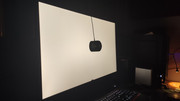
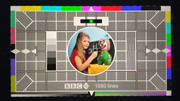
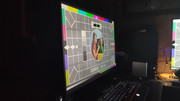
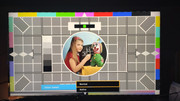
Here are a few shots of the Dell Monitor:

White version from the front: image White version from an angle: image

Black version from the front: image Black version at an angle compared to the MVA TV (on the right): image
Front view test: image Angle view test: image
MVA TV front view test: image MVA TV angle view test: image

Everything was photographed by taking pictures of the screen at 120 nits, and I kept the exposure fixed on my phone.

@Timothy Kim60/">@@Timothy Kim60: thanks for the reminder, I probably need to switch over to DisplayPort if I want to get that 10-bit color working properly. I'll head out to grab a cable in the morning.
Monitor buying guide (mega-thread) in Computer Peripherals ·
Timothy Kim60 said:On paper, it really seems like that famous Dell model.

I set up my new monitor (Dell Monitor) and after looking through the reviews for that Dell, I’d have to say you’re spot on regarding the panel quality.

First off, the size feels just right; at my usual working distance, it hits that sweet spot perfectly. The design itself is quite "bland"—almost industrial in its simplicity—lacking any of those flashy design flourishes like glossy bezels or silver accents, which honestly suits my taste better. Even the power LED is tucked away under the bottom edge so it doesn't distract me. You can actually feel the difference of the 75Hz refresh rate during basic Windows tasks, like moving the cursor; everything just feels a bit more fluid. I also appreciate that the menus are styled like a Dell, with the buttons tucked away on the right side; the interface is the epitome of simplicity, though it does lack some of the extra options you find on the Dell.

Looking at it realistically, the image shifts slightly depending on your viewing angle due to this sort of dark "sheen" or gloss that washes over the screen as you move. On my old 23" IPS LG, this was less noticeable on the left and right sides, but it was much more apparent top-to-bottom and had a bluish tint, whereas here it appears white. You can see a slight shift toward the corners when looking at a pure white screen from the front. However, the Balanced viewing angle test shows a very minimal difference—it’s almost non-existent when looking straight on, and while it changes from the sides, it does so quite uniformly. The shift isn't in the color itself, but rather in the gamma and brightness, which is identical to what was noted in that excellent Dell review:

https://pcmonitors.info/reviews/aoc-q3279vwfd8/

White uniformity is roughly the same as the Dell (based on my measurements), and the blacks are decent, though there are some brighter patches. I haven't measured the black levels yet because that takes forever, and I'm not entirely sure if what I'm seeing is light bleed or just IPS glow—honestly, it's hard to tell if the anti-reflective coating is causing the glow, if it's light leakage, or perhaps a combination of both. Overall, it’s nothing worse than my old 23" unit, which I paid about $533...

Then it occurred to me that this sheen or glow is actually much more pronounced on an MVA matrix used in televisions.

The monitor has a color gamut that is significantly wider than sRGB but narrower than DCI P3, mirroring the Dell, even though the spec sheets suggest otherwise. The most important thing for me was hoping the sRGB mode would function like it does on the Dell by restricting the gamut, but unfortunately, the colors remain the same across all modes.

The contrast is higher than what you typically expect from an IPS—1344:1 at 120 nits and 1575:1 at a maximum of 275 nits—while the black level sits around 0.09 nits, which is pretty much on par with the Dell.

The Lenovo does feature a VESA mount, unlike the Dell.

Here is where I am struggling: I am genuinely considering returning this to pick up the Dell instead, simply because the Dell has that functional sRGB mode and since the Lenovo is more expensive despite sharing almost all the same pros and cons. It would be the cheaper route in the long run. That said, I really like the ergonomics of the Lenovo (those bottom-mounted buttons were such a headache on my old LG) and its understated look. But then again, what if I end up with a Dell unit where the sRGB mode is poorly implemented and practically useless? (You wouldn't believe what a scam that mode was on that highly praised Dell Monitor). If that happens, I'll end up having to mess around with ICC profiles and LUTs anyway.

Still undecided. 🙂😁

P. S. I might post a few photos later...

Also, could wiredotter14 check if it's possible to select 10-bit color in the graphics driver for the Dell? (You might need to try lower resolutions). I can't seem to get it to work on my GTX 1650, even though the panel is 10-bit.

Monitor buying guide (mega-thread) in Computer Peripherals ·
wiredotter14 said:It’s pretty much the same deal with those three monitors I mentioned earlier, since they've been confirmed to use identical panels...

The more expensive model hits 165 Hz and actually supports a true High Dynamic Range signal, whereas the budget option tops out at 144Hz and just uses some fake High Dynamic Range effect. It makes sense, doesn't it? If the cheaper one does enough for you, why bother spending the extra cash, though the potential for better performance is definitely there if you want it...
Monitor buying guide (mega-thread) in Computer Peripherals ·
Timothy Kim60 said:On paper, it honestly looks just like that famous Dell model

It’s true that if you just look at the spec sheets, plenty of monitors seem to share those exact same baseline features, but then you start digging deeper and realize a brand like Dell might offer a much wider color gamut or other subtle advantages, don't you think?
Monitor buying guide (mega-thread) in Computer Peripherals ·
May God forgive me, because I went ahead and ordered this:

It’s really just a hunch, but based on several different reviews, I'm hoping there isn't any major IPS glow, that the uniformity is solid, and that backlight bleed stays to a minimum. If it ends up being too much of a disappointment, I'll just send it back. It wasn't exactly cheap, after all...
CPU recommendations? in Desktops ·
Arthur Anderson10 said:Handbrake runs ffmpeg under the hood. I have no idea what that Adobe Premiere software is actually using.
I downloaded the free version today, and honestly, it was a total disaster.
It didn't even give me the option to select an NVIDIA GPU or use the x265 codec. I'm not sure which specific version everyone else is running, but the one I just grabbed was practically useless.

http://www.videosoftdev.com/ so I went ahead and downloaded their video converter.

You really need the full installation of Adobe Premiere, because that's where the updated converter is located that actually supports Intel...
Monitor buying guide (mega-thread) in Computer Peripherals ·
wiredotter14 said:Try looking up some reviews first, since General Electric isn't exactly known for having perfectly consistent panel quality.

Do you really think there are massive variations within the exact same model, or am I overthinking it? And just to throw the question back at you, I did mention "according to reviews" in my original post, didn't I? 😬I'm still torn between the 24-inch or the 27-inch version, mostly because I'm worried the text might look way too small on a smaller screen. Honestly, I think I'm just going to pull the trigger on this purchase, if only so I have something new to complain about here... besides, the max brightness on my old LG has tanked from 250 nits down to a measly 140.
Monitor buying guide (mega-thread) in Computer Peripherals ·
I just pulled the trigger on this 24" Dell QHD monitor:

The size feels like a much better fit for my current desk setup... it's got a 75Hz refresh rate, the sRGB color accuracy looks solid, and based on what I've read, the contrast is actually pretty decent for an IPS panel, wouldn't you agree?

And if you look closely, there’s also a 27" version available if you're willing to shell out a little extra cash:
CPU recommendations? in Desktops ·
Does anyone happen to know which specific preset this video Converter is running? I've noticed that Handbrake performs just as quickly as VSDC on my machine—even when I'm doing GPU encoding and scaling 4K down to 2K—but for some reason, my video encode graph for HB stays pinned at 100% usage. Is there a reason for that discrepancy?
CPU recommendations? in Desktops ·
wiredotter14 said:What kind of drivers am I supposed to register for to actually get the download?

The app? 😁
CPU recommendations? in Desktops ·
Arthur Anderson10 said:The mid-range is where it all starts.

But if we are looking at his Hardware, how on earth can he finish an H.265 encode in 7 hours when it usually takes 16? He’s only running an i3 paired with a 1050 card.

When it comes to video work, modern RTX GPUs definitely deliver impressive results, but if your main priority remains pure image quality, isn't the CPU still king in that department? A CPU will simply take whatever amount of time is necessary to process the frame perfectly. If it takes 8 hours just to render one minute of footage, so be it, because you'll end up with The Best result. In my experience, ATI doesn't really offer those two-pass options via the GPU, which seems to be the primary limitation there.

[/B]
.

Well, if he’s utilizing an NVIDIA GPU encoder, there isn't actually much difference between cards within the same generation, assuming it works at all... it doesn't rely on CUDA for that specific task; instead, it uses a dedicated ASIC that is essentially identical across all GPUs of that generation. Now, I've heard the 20-series cards supposedly assist the NVENC process by leveraging CUDA... but does that same logic apply to the 16-series? That's the real question. I suppose I could try testing Adobe Premiere Pro on an RTX 2060 back at the studio, but I don't really feel like heading in there unless work absolutely requires it. 😁

P.S: It is possible that the AMD transcode profile supports 2-pass encoding...
CPU recommendations? in Desktops ·
He mentioned somewhere that he uses NVENC... but from what I can gather, he’s encoding in HEVC, which would imply his CPU is being hammered at 100% utilization, which just doesn't seem right. There are actually a few little "tricks" when you're working with hardware encoders; for instance, if you're trying to stream 60 fps while simultaneously running gameplay, the hardware encoder has to operate in a different mode—let's call it a "fast-low quality" setting—if frame rate needs to take priority over visual fidelity, unlike when you're simply transcoding a video file. I have the ability to manually select this when using AMD VCEENC, and honestly, the results turn out quite decent.
Monitor buying guide (mega-thread) in Computer Peripherals ·
wiredotter14 said:I suppose I 😁

[CHAT]Maybe if I just upgrade to a larger screen, I'll actually be able to read what everyone else is typing clearly enough.[/CHAT] 🙄😵