I'm running Windows 10 on my HP notebook 15-rb031nm. I already grabbed the Bluetooth driver, and the whole plan is to pair this thing with a Bluetooth speaker, but I'm totally stuck on how to actually make the connection happen on the laptop itself. I don't see any icon popping up in the taskbar at all. Anyone know how to fix this?
So, I’ve got this aging laptop running an old 140 GB hard drive, and honestly? It’s starting to act up—let's just say it's being a bit of a pain in the neck. I’m looking to swap it out for something new. A buddy of mine was telling me I should definitely grab an SSD instead of sticking with those standard old-school drives because they're supposedly way better. Can anyone break down what the actual perks are? Like, how much of a difference am I actually going to feel in my day-to-day workflow compared to my clunky old hard drive?
So, I'm trying to figure out how to hook up my phone or laptop to my TV. I stumbled upon this little gadget that plugs right into the HDMI port, but I'm totally stumped on how it actually gets power. Does it just suck juice straight from the HDMI port, or am I gonna need to plug it into a wall outlet or something? If anyone’s got a second to clear this up for me, I'd really appreciate it!
goldenmason8 said:Yeah, even on the unknown system, it shows those exact values.
Just take a look at this...
I honestly have no clue where you're seeing coordinates like 43.unknown, 16.unknown. What you're looking at is degrees, minutes, and seconds, and you can't just plug that kind of format into mobile navigation. What I actually need are decimal ones, like 43.748939,16.4257923.
Just so when I pull up to the property, I actually have a rough idea of where the boundaries are I mean, it doesn't need to be perfect or anything, just a ballpark figure
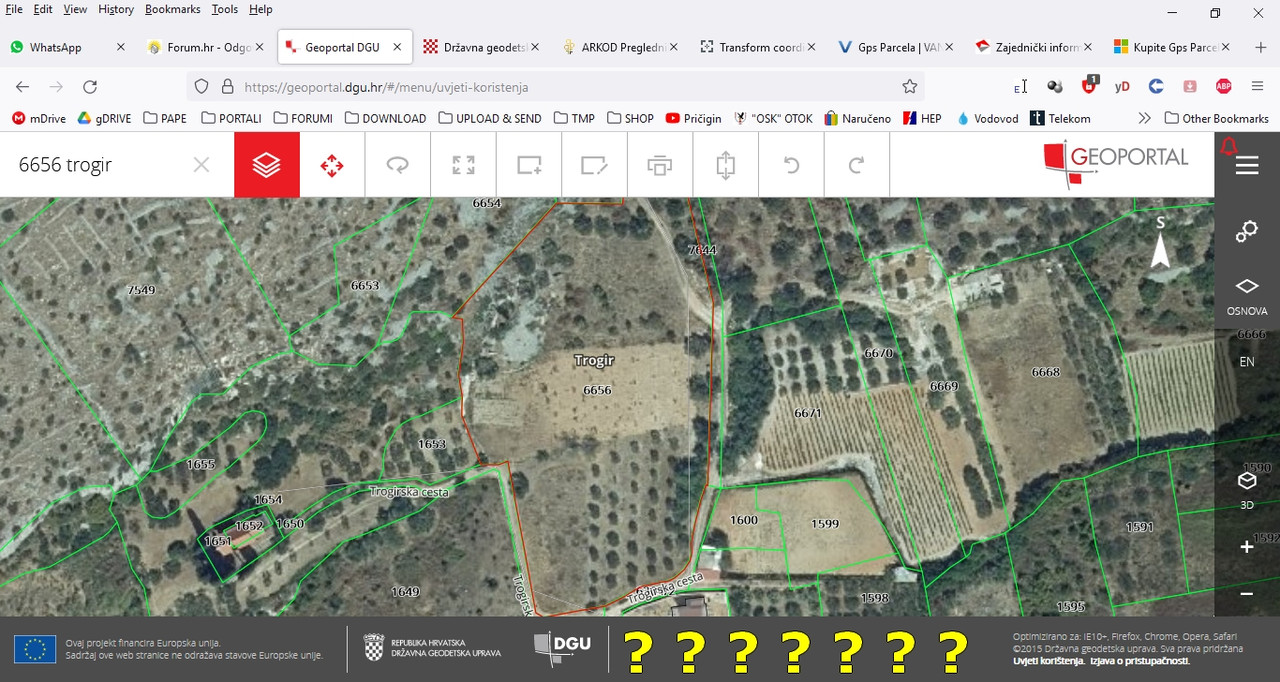
I saw that info on the unknown system, but here's the snag: the coordinates are showing up like this: E N: 468544,25 4816827,5 but I really need them to look more like 43.xxxxxx, 16.xxxxxx See, that's the only way I can plug them into my phone to actually find the GPS spots I stumbled upon this online converter but I'm totally lost on which box gets which number I just can't seem to get it into the format I need
Look, I’m not planning on building anything just yet, I just really need to get a rough idea of where my property lines actually sit. But here’s the headache: whenever I pull up Google Maps and hover my mouse over my lot, that little black info bar at the bottom stays totally blank—no coordinates or WGS84 data showing up at all. I’m moving the cursor all over the place, but nothing pops up. Check this out: adorable baby boy names
Wait, hold up—did you actually go through and install all the drivers for the laptop? And I’m not just talking about the graphics card here. I mean the core stuff, like the motherboard and Ethernet drivers straight from the HP site for that specific model? So, did you just sit back and let Windows try to work its own magic?
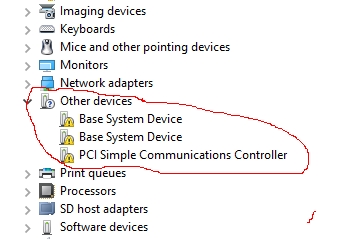
It's about a laptop. I just let Windows handle all my drivers automatically. Honestly, I always just leave it up to Windows to install everything myself—it's way easier that way. My laptop’s running fine, but I was just wondering—do those yellow exclamation marks actually mess with my performance at all, or am I just seeing things?
So, I’m looking at my Device Manager and seeing all these yellow exclamation marks popping up. It's got me wondering—is this actually going to mess with how my laptop runs, or am I just stressing for nothing? Every time I try to run a driver update (just trying to be thorough, you know?), I get hit with this message: "Windows was unable to install your Base System Device. Windows could not find driver software for your device."
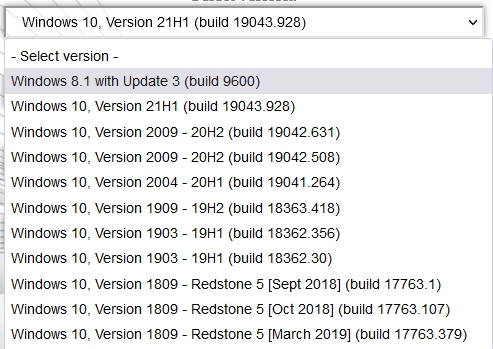
Nailed it! So I just finished installing this "Windows Final / 21H1 / Windows 10 / English / x64.iso" and man, everything is running smooth as silk now—even the screen brightness looks spot on. The best part? This version went ahead and grabbed the right Graphics driver for me automatically. Thanks to All
Let me clear things up a bit. I picked up this laptop about 15 months ago and everything was smooth sailing until I did my first Windows reinstall (Windows 10 Home) Ever since that reinstall, the screen brightness feels like it dropped by about 20%, making it a total pain to actually work on So, we went ahead and tried five different versions of the Graphics driver, straight from their official site The weird thing is, right after installing any of them, the brightness looks perfect, but then every five minutes, I get hit with a blue screen that says: Your PC ran into a problem and needs to restart. We're just collecting some error info, and then well restart for you
It’s driving us absolutely crazy because we can't seem to get a hold of the manufacturer via email to explain what's going on Every time we try, some automated virtual chat just loops us in circles asking stuff like, "Did our response resolve your issue?"
Dammit, I just tried installing that fifth one from the list (2020) and right in the middle of the setup, I get hit with "The driver is not supported on this OS version (10.0.10240)."
Windows 10 Home So, I started by running the automatic driver detection, and it basically told me everything was fine—no upgrades or installs needed, right? But then, I decided to manually grab the first driver on the list, and man, things went south fast. Now my screen keeps cutting out—just constant black screens or those annoying blue error screens. Everything else seems to be running smooth, but there's this one huge headache: the screen brightness is super dim, and it’s happening to all my windows too. The weird part is, if I roll back to that specific driver, the brightness goes back to being perfect and it's actually a blast to use. I’m just totally stumped because we have three other laptops at home that are way older than this one, and every single time we reinstall Windows on them, the OS just handles all the drivers automatically without any drama.
Windows 10 So, I picked up this HP 15-rb 031 laptop about 15 months ago. The thing is, the screen brightness—and even the windows themselves—looks all dim and washed out, almost like someone turned the lights down low. A buddy of mine told me it’s probably just because the Graphics driver isn't installed properly, so he suggested I go grab the driver for it. I headed over to their official website and downloaded the Graphics driver just like he said. But here's the kicker: after I installed it and rebooted, the brightness looks awesome, but now the screen keeps cutting out! It just goes black, throws some random error message, and keeps flickering on and off constantly. Once I uninstalled that driver, the screen stopped cutting out, but yeah... we're back to that super dim brightness again. Does anyone have any clue how to fix this mess?

 adorable baby boy names