CheckEmoji Community · the emoji forum
🏠 Home 🆕 What's new ❓ Unanswered 🔥 Popular 📡 RSS Members 👥 0 online log in · register
Home › granitecrane2 › Posts

Posts by granitecrane2

112 posts shown.

Old Dell laptop - Windows won't boot in Hardware ·
dustybadger11 said:https://www.cyberport.at/pc-und-zube...-nand-tlc.html

Something like this? But what am I supposed to do with my files? Wouldn't it be easier to just grab an external drive, move everything over there, install Windows, and then run it off the external? Maybe I'm totally off base here...😁

Not quite (that one is an NVMe, which is top-tier, incredibly fast, and very expensive—I actually have one myself). You want something more like this:

You need a SATA SSD, and it goes right into the same slot where your current HDD sits now.
Before you swap them, you’ll need to copy all your data over. There is specific software for this. Some manufacturers include it on a disc, while others don't.
Check this out: https://www.diskpart.com/clone/clone...free-1881.html

And yes, even though it's slower than an NVMe, because of the interface, it is still vastly faster than a traditional HDD. Both the SSD and your RAM are the critical components needed to make a laptop feel snappy again.

Avoid using external drives for the OS, because USB can be slow (especially on older laptops). While newer USB standards are fast, much like how Apple uses Thunderbolt, if you had a modern laptop, you wouldn't be asking this in the first place. So, forget about running off a USB drive. You'll only need an external connection for the cloning process itself. For that, I recommend picking up a small enclosure so you can connect the drive:

This one is a bit pricier, but it comes with its own power supply, which is a plus since USB ports have limits on how much power they can output (if I recall correctly, it's about 0.5A at 5V). You don't necessarily have to buy one if you know someone who has one (you could borrow it, do the clone, and return it), or if you have a desktop PC where you can temporarily plug it in while you perform the copy.
Best power bank for a Dell XPS 13? in Laptops ·
Alex Sullivan4 said:ok 👍 This won't be my primary charging method; I just want to have it as an extra option if the situation calls for it. My main priority is having that peace of mind, knowing I'm not doing anything to jeopardize the health of my MacBook's battery. 🙂

Times have changed. Voltage regulators are being churned out like junk food these days—there’s an endless supply of them everywhere you look. They're being integrated into almost everything now. It's reached the point where you practically never see a battery being charged directly anymore.
No, you don't have to worry about anything happening to the MacBook battery. It's protected by an entire forest of voltage and current regulators that constantly fine-tune the power levels to meet its exact specifications.
That doesn't just apply to the MacBook; it goes for pretty much any device you plug in. Honestly, these days, the specific voltage you're feeding it or even which power adapter you use isn't really the deciding factor anymore. We have voltage and current regulators built into every single stage of the process—from the charger itself, through the Thunderbolt interface, all the way down to the BMS inside the battery cells.

Oh, right—when I mentioned the risk of overheating, I wasn't actually talking about your MacBook's internal battery. I misunderstood your setup and thought you were planning to plug an external battery pack directly into the Thunderbolt port. My mistake! I was strictly referring to using a portable power bank to charge your MacBook. In that scenario, the only real hurdle is capacity. To be honest, I suspect your MacBook actually has a larger capacity than most standard travel power banks on the market.
I have one large 12 Ah battery and one smaller 10 Ah one. The big one is NiMH, so it’s quite heavy, while the smaller Li-Ion unit was actually a gift I received during an e-learning project. My MacBook only has a capacity of 5.2 Ah. This means that by using those larger external batteries, you could practically charge the laptop twice over.
Best power bank for a Dell XPS 13? in Laptops ·
Alex Sullivan4 said:for USB-C:
Type C PD output: DC 5V/3A, 9V/3A, 15V/3A, 20V/2.25A

By the way, the power bank is a RAVPOWER RP-PB095.

It should work fine.
The thing is, my MacBook doesn't actually need the full 60W it comes with; that extra overhead is mostly there to power external drives, external monitors (not to run the screen itself, but to power things like an HDMI hub, which gets pretty hot), all while running at full throttle (all 8 cores).

So, for moderate use, this will be plenty. Even if the power draw spikes and becomes insufficient, the Mac will just throttle its core consumption or disable the performance cores—basically switching into a power-saving mode.

Mind you, I can't be 100% certain about any of this since nobody outside of Apple knows the exact technical specs. This is just my take on it. Personally, I have a MacBook Pro M1 and I’ve occasionally plugged it into other chargers (like from a Dell laptop) and it never complained. I’ve also used various PD hubs, which Apple doesn't officially recommend, and again, no issues whatsoever.

What I think is the real critical factor here is your battery. It could overheat if it's being pushed too hard. If you have a high-quality battery with solid voltage and current regulators, you shouldn't run into any trouble.
Keyboard recommendations? in Computer Peripherals ·
Gregory Hayes87 said:The Redragon K530 (around $45) is small, sleek, and works great.

LinkedIn actually has the Logitech G Pro X on sale right now.

Razer is basically becoming the DJI of the keyboard world. You've got mechanical, optical, RGB everything—every single key has its own LED, you can pick any color, there's dedicated software for customization and lighting effects, plus built-in hardware effects, detachable cables, even the CEO's signature and custom stickers... If you aren't a fan of purple (personally, I love it), they have red options too (referring to the switches, specifically the noise level and tactile feel). And just to clarify: yes, it’s mechanical, but the actuation is actually optical (it uses a light beam sensor).
PC won't boot up in IT Support ·
copperdriver26 said:Let me jump in here since I’m stuck in this mess too—my rig just flat-out refused to boot, so we swapped out the Seagate BarraCuda HDD. Now, it actually starts up, but it gets trapped in that endless loop during the initial startup sequence. I tried tightening all the connections and now it boots normally and sounds like it's actually running, but there's absolutely nothing on the screen... just black. Honestly, I’m starting to suspect the power cable might be the culprit, especially since everything was working perfectly fine just last week.

There might be an issue with the BIOS. If I had to guess, that's where the problem lies, though I can't say for certain.

Robert Long7 said:Seagate BarraCuda HDD, Windows hasn't been freshly installed yet, and the power supply is:
https://www.lc-power.com/en/product/...lc420h-12-v13/

LC Power makes decent power supplies.

However, there is another possibility: one of the auxiliary power connections might not be seated properly. I am specifically thinking about the extra 12V rail for the CPU or the dedicated power connector for the graphics card. Quite often, when components draw too much current directly from the motherboard because they lack those supplemental power connections, the system essentially goes into a sleep state. Again, I cannot be entirely certain.
Best photo inkjet printers for professional-grade prints? in Computer Peripherals ·
Terry Collins9 said:Nice one!

I’m not going to dwell on that right now; I honestly couldn't care less about them. I spent nearly a decade dealing with people like that, so thanks, but I'll pass. What I actually need right now is a solid inkjet printer—something capable of smooth gradients and deep color saturation on glossy paper. We just bought a house, and I'm finally getting my own office set up. My plan is to print my own photos and frame them for the walls. The alternative is sending them out for professional printing (using a digital Frontier Airlines service and actual photo paper), but the issue there is that I lose control over the final result. I can process an image perfectly and hand it over in Sundance Film Festival quality using TIFF files, but I have personally WITNESSED time and again that when you walk in with a TIFF and a specific color profile, they look at you like you just dropped in from Z and Reticula. And let's be clear: I am absolutely not printing from an Adobe file.
Best photo inkjet printers for professional-grade prints? in Computer Peripherals ·
Terry Collins9 said:You’d probably have better luck posting this over on the Photography subreddit.

The problem is, nobody there actually knows anything about photography, let alone the technical side of printing.
Best photo inkjet printers for professional-grade prints? in Computer Peripherals ·
Hi there.

I’m starting this thread because I have a very specific request, and I wasn't sure if it had been covered yet.
Basically, I am looking for an inkjet printer that delivers absolute top-tier photo quality, regardless of any other features (though I do have some constraints listed below).
I already own a color laser printer, which handles all my color document needs perfectly fine. I also have a scanner—including a duplex one for both documents and film—so I don't need that. I even have a small Canon Selphy for quick prints, so dye-sublimation printers are off the table.

What I actually want is the most straightforward printer possible. I don't care about office bells and whistles like scanning, Wi-Fi connectivity, or any of those complex office software suites. I just want ultimate photo print quality.
I know there are now printers out there with 10 colors (like the Epson SureColor series), but the prices are astronomical. Plus, around here, they are mostly sold by small independent shops that tack on insane markups. I have zero interest in helping someone else pad their margins during these tough economic times by dropping $24000 on a single printer.

So, which inkjet printer offers the best photo output at a reasonable price point that I can actually find easily here in the States? An EcoTank model would be a nice bonus.
Monitor keeps switching inputs on its own in Hardware ·
wanderingbison9 said:Well, you pretty much answered your own question regarding the PS2. I was under the impression that the adapter would convert everything to a progressive signal. That Samsung monitor doesn't have an HDMI port and looks like it's from a different era; the resolution is definitely lower than 1080p, it likely uses single-link DVI, and since it's clearly PC-centric, it makes total sense that it wouldn't support standard TV signals—let alone modern 4K stuff...

There is no way it supports 4K.
Monitor keeps switching inputs on its own in Hardware ·
Edward Peterson70 said:The PS2 HDMI converter is pushing out a 480i signal, and either the monitor can't handle upscaling or—more likely—it just doesn't support interlaced video.

On the flip side, the camera has a 48MP sensor and really ought to be outputting a 4K signal. It has an on-screen menu, but for obvious reasons, I can't actually see it.

The monitor is definitely picking up *something*, because the screen isn't totally dead; there's no "no signal" notification appearing.

It's definitely the camera. This isn't some hardware failure; it's just a mismatch between the HDMI protocol the camera uses and what the monitor supports. Someone mentioned it might be a 50 Hz issue involving interlaced video. That’s a possibility. However, most modern monitors should be able to handle 25p or 50i. You really need to dig into those technical specs.
Whatever you do, don't switch the camera over to 60Hz. The standard broadcast settings used here in the States are different from what they use overseas. We deal with 30p and 60i, not 25p and 50i.
MacBook keyboard issues in Laptops ·
rowdyjackal35 said:Should I get a MacBook with an American or an English keyboard layout? Which one do you guys use and why?

I have an American layout. You really should stick to what you're used to; otherwise, switching from other computers becomes a total nightmare because symbols like /, \, +, -, and _ are all in different spots.
When I bought my machine, the retailer actually laser-etched our specific characters onto the right keys for me. It wasn't originally an American layout—it was more similar to a German (QWERTZ) setup—but they customized it.

Plus, if you don't have your standard characters (like those extra accented letters we use), you'll be stuck hunting for them every single time you type. I wouldn't recommend it. Any reputable shop, especially one selling Apple products, should offer keyboard engraving options.
Manual duplex printing - how to do it? in Computer Peripherals ·
That’s exactly why I went with a duplex laser printer. It handles double-sided printing automatically. Dealing with those manual stacking tasks is just way too expensive, a massive waste of time, and honestly, a total headache.
HDMI port issues on my GPU. in Desktops ·
fadedorca66 said:Geez, man 🤦

The GPU is running just fine without drivers, yet you're ready to toss it in the trash and bake it.

Even if the HDMI ports are dead, there are still two DisplayPorts left—if those work, you're golden.

Don't be like that. Personally, I love stuff like this. Instead of throwing it in an oven, he could just give it to me. It would work perfectly fine on my end.

fadedorca66 said:Even if the HDMI ports are dead, there are still two DisplayPorts left—if those work, you're golden.

Exactly. Though, I suspect he might have just installed the wrong drivers. I could be wrong, though.
Keyboard and mouse issues in Computer Peripherals ·
David Reyes17 said:Hi there,

I’ve started running into some issues with my keyboard (a Razer BlackWidow, about 5 years old), and I think my mouse might be acting up too (a Razer Basilisk Ultimate, only a month old).

It feels like the keyboard has this weird lag, and it isn't registering keypresses properly.

For instance, when I'm typing, sometimes a letter just won't show up even though I pressed it normally, other times it double-types a single press, and occasionally there's a half-second delay before the character actually appears on screen.

In games, it gets even worse. If I'm holding down 'W' to move forward, my character will suddenly stop as if I let go of the key. Even if I'm just standing still and tap 'W', the character starts moving but then hitches, acting like I tapped it very briefly. It's the same thing with sprinting—if I hold down Shift, my character will randomly stop sprinting and just walk forward instead.

As for the mouse, I've noticed something similar with the right button I use for zooming; sometimes the weapon zoom just cuts out even while I'm holding the button down.

I've ruled out user error because there's no way I'm missing the keys or losing my grip that often. I've tried reinstalling the drivers through their respective apps, my BIOS is up to date, chipset drivers are installed, and I've tested various different USB ports. I even went as far as doing a clean install of macOS (it happened on Windows 10 too), adjusted the repeat rate and delay settings, and made sure Filter Keys and Sticky Keys are all turned off.

I'm officially out of ideas on what else to try or what could be causing this. At first, I thought maybe it was just the 'W' key since I use it so much, but after remapping my controls to less frequent keys, the issue persists everywhere. It seems unlikely that so many different keys would fail at once, especially since the mouse is practically brand new.

It isn't your fault, and it probably isn't the mouse either. This looks like a hardware or perhaps even a software issue.
HDMI port issues on my GPU. in Desktops ·
Douglas Ramos5 said:I'm running into an issue with the HDMI port on my graphics card. The image keeps flickering on and off constantly. I've tested it with several different monitors, but the result is always the same. For context, the card is an RTX 3060 ROG Strix 12GB. Does anyone have any advice?

Did you make sure to plug in the extra power connector for the GPU?
Installing MS-DOS on a blank PC in IT Support ·
Ryan Watson43 said:I honestly never imagined I’d be the one posting a question like this on a forum, but after scouring several different sites and facing nothing but dead ends, I’m hoping someone here might actually show me some mercy...

So, here is the situation: I take a USB stick, turn it into a bootable startup disk, plug it into an empty PC, set the boot priority to the USB, and—presto—I successfully launch DOS.

The problem, however, is that the system only recognizes a single drive—the C: drive—which is, of course, the USB stick itself. Once I pull the stick out, the PC is essentially a paperweight.

How exactly am I supposed to install DOS onto the PC itself? Do I need to manually create partitions first? And if so, what is the proper way to go about that?

(The machine has an SSD in it, though it seems to be failing—it caused things to crash during a previous Windows installation attempt. Still, I’d at least like to get DOS up and running)

I was actually struggling just a few days ago trying to install Windows XP 32-bit as a dual-boot alongside Windows 10 x64. It isn't as simple as it sounds. On newer motherboards, installing any 32-bit OS is almost impossible. When you search online, you get all sorts of advice, like disabling RAM modules because having too much memory interferes with the process and whatnot.

On an older motherboard I have in a museum computer, I managed to pull it off (after I completely messed up my Windows 10 partition), though it took quite a bit of maneuvering. Now I have a new Linux install, Windows 7 64-bit, and Windows XP 32-bit sitting there, and I'll probably put Windows 10 back on once I find the media.
Basically, people recommend physically disconnecting all other hard drives because there's a known bug in the installer where it fails to select the correct partition intended for Windows XP (it picks the wrong one even when you select the right one).
Furthermore, you can't even create or format a partition using anything else; you really have to do it within XP itself. Also, the disk needs to be MBR rather than GPT. And so on.

In short, for your DOS attempt: disconnect every single drive except the one you want to use for DOS, wipe it completely, delete all existing partitions, and then try using the DOS installation disk to create and format the drive.
Naturally, the drive shouldn't be too large; generally, the older and smaller the better. An SSD might work, but I wouldn't bet on it.
After that, proceed with the DOS installation.
Honestly, I don't see much point in doing this, since the system is so ancient that modern hardware can run it at blazing speeds for any demanding task inside Oracle VirtualBox.
Any game from that era will fly just as if it were running on original hardware. Not to mention, for gaming, there is always DOSBox available.
image
RAM upgrade advice? in Desktops ·
Zachary Lopez3 said:So, here’s the deal: I just installed some new RAM. I actually had to pull out my GPU and the CPU cooler just to reach the second slot—man, what a headache! But anyway, they’re in and the system is running.
View on imgur
It’s reading all 24 GB of RAM, and the PC hasn't crashed, rebooted, or thrown a Blue Screen at me once. I even ran the Windows memory diagnostic and everything came back clean. I’m not sure what else I should do to be absolutely certain everything is fine, BUT there is one issue. If you look at the picture on the right, you'll see the speed is listed at 1600 MHz. Why did it drop from 1866 down to 1600? Both the old and the new sticks are rated for 1866 MHz, so why is this happening?

Even those of us rocking high-end boards like an Alienware m16 have to manually tweak the RAM settings in the BIOS. For instance, the default might be set to 2400 MHz, but we bump it up to 3200 or higher. That isn't technically overclocking, because the RAM is indeed rated for 3200; it's just that the DDR4 standard baseline is 2400. That’s exactly why XMP profiles exist.


The video is already set to the specific timecode, so don't mess with the playback position. Just click play and watch from there.

P.S. As it happens, I’m actually using that Corsair Vengeance RGB memory myself—2x32 GB (I'll be adding two more soon to hit 128 GB total, and please, don't ask me why I need that much). I'm not trying to bash any retailers, but honestly, if you go to Best Buy, you can't even find a dedicated section for 32 GB modules.
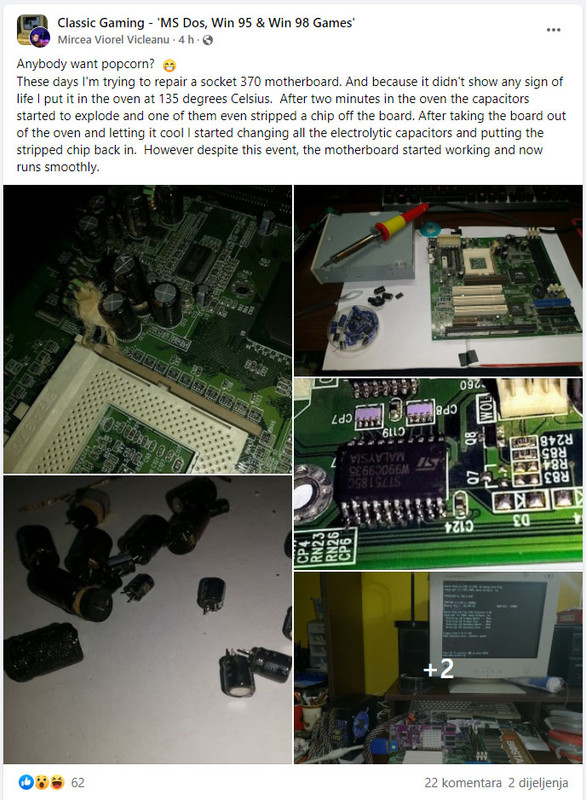
Guts and Glory: Pushing it to 135°C in Hardware ·
I’d call this a combination of pure guts and actual expertise.
image
Home office PC build ideas? in Desktops ·
Joshua Garcia3 said:- roughly $1567 (I put this together myself; parts came from AMD, Linksys, and Micro Center)

- the "Zalman S3 Plus" case actually has a slot for a DVD drive...

For about that kind of money (maybe an extra $33 or so) with these components, you could probably head over to Micro Center and build a PC yourself...

Exactly. I built a brand new rig around a Be Quiet! setup! However, for purely sentimental reasons, I stuffed my old motherboard into a Zalman Z3 Plus and loaded that Zalman up with glowing fans (the top ones controlled by the case can be anything, so I grabbed some Corsair RGB ones), then filled out the rest with Lian Li fans—they come with their own ARGB controller and a PWM speed regulator. Now that case is glowing like Bethlehem; it looks great, and it’s running my old configuration perfectly.

I won't claim the materials or the build quality of Zalman are top-tier. They really aren't. But for the price point, it's a solid case. I wouldn't recommend it to anyone building a high-end workstation who demands premium craftsmanship. But I would definitely suggest it to someone looking for a compact case who has the patience to tackle cable management through tight channels, needs DVD bays or maybe even a small floppy slot, and doesn't mind having to tug at things behind the expansion slots or dealing with an acrylic window instead of tempered glass. The stock fans are decent too (not elite, but good). The most important thing about this case: there is plenty of room for large HDDs and a spot for a smaller drive like an SSD, all of which can be installed toollessly.
If you install glowing fans on top, you'll see the light through the vents (for instance, you won't see it with Be Quiet! fans, which is why I bought side-lit ones for it—Lian Li is the winner here).
So, if your budget and space are limited, but you have the patience and the knack for building PCs (the manufacturer explicitly states: "assembly instructions not included, as we assume this will be handled by qualified individuals"), go ahead. Once it's assembled, it'll look better than many cases that cost twice as much.
RAM upgrade advice? in Desktops ·
Zachary Lopez3 said:So my question is, can I just casually toss another stick in there next to these 8GB modules and end up with 24GB of RAM? Or does it just not work like that? I've never actually heard of anyone running 24GB of RAM—everyone seems to go for 8GB, 16GB, or 32GB. Nobody ever has 24GB, haha.

It’s unpredictable. Sometimes it works, sometimes it doesn't. But since you're clearly planning on upgrading your RAM anyway, I'd suggest just picking up a 2x8GB kit for 16GB total, which should be plenty for what you need—honestly, having very little RAM feels pretty silly these days. If it plays nice with your existing 8GB, great. If not, oh well. Just pull the old 8GB out. Actually, if I were you, I'd just grab a 2x16GB kit right now and forget about those old sticks forever. Of course, that assumes your motherboard supports that much capacity (I haven't looked up the specs for that specific board). Regardless of what the board can handle, just buy enough RAM to fill it properly, then sell or toss the old stuff.